Step 1 - Downloading files
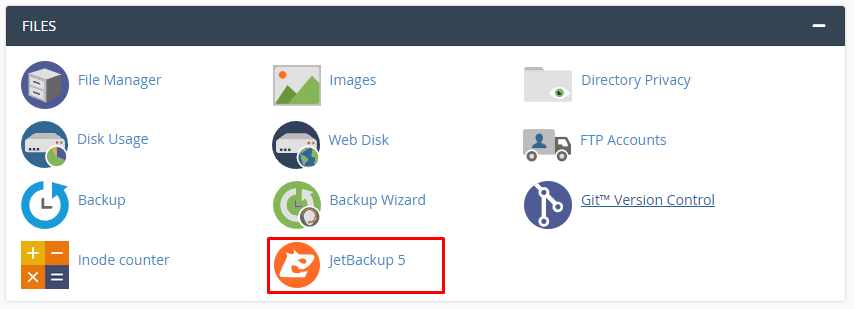
You can easily find the backups of your files by opening your cPanel, clicking on JetBackup 5:
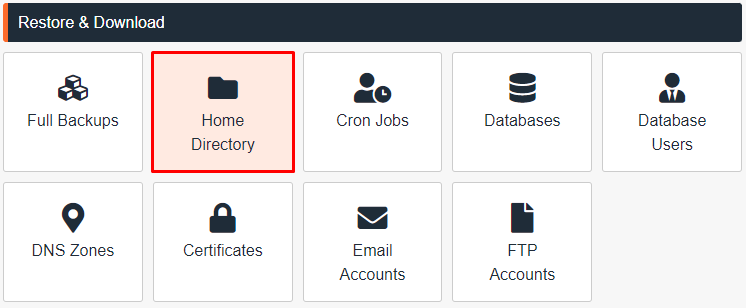
And selecting Home directory:
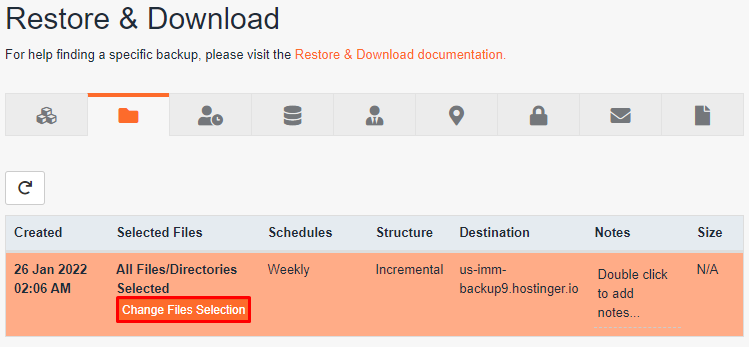
From there, select the date of Backup that your want to download and click on Change Files Selection:
Select all the files that you wish to download and click on Download:

That’s it! You know how to download website files backup
Step 2 - Downloading your database
Access your cPanel, click on JetBackup 5:
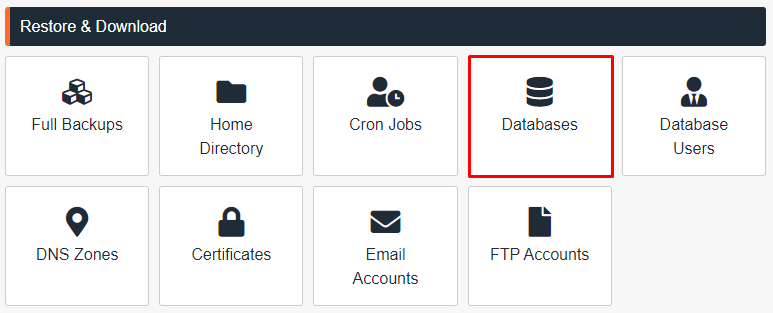
And select Databases:
Once there, select the desired database by clicking on Choose Other Backup:
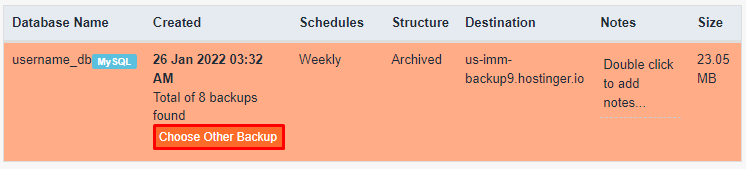
When that is done, simply click on Download:
That’s it! Now you know how to download database backup on cPanel
NOTES:
-
If your account is bigger than 8GB’s or more than 200,000 inodes, new backups won’t be generated automatically, in these cases it’s best to back up your website via FTP.